Learning Docker — What I Wish Someone Had Told Me Earlier
Why most Docker tutorials fail beginners, the critical difference between images and containers, and what actually happens when you run a container.
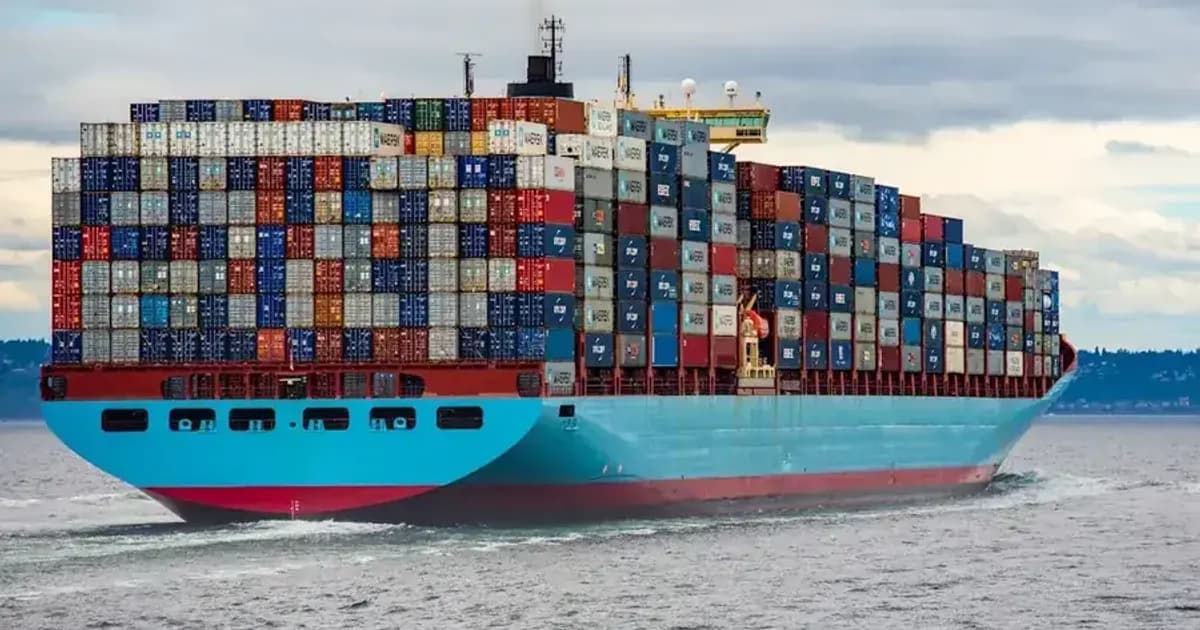
Third time was the charm for learning Docker. First attempt: a tutorial comparing containers to shipping containers on a boat. Cute analogy, I think. Didn't help when my Dockerfile wasn't building. Second attempt: someone explained it as "a lightweight virtual machine," which is technically wrong and set me back months because I kept thinking about Docker in VM terms. Third attempt: I read about what actually happens at the Linux kernel level when you run docker run, and suddenly the weird behaviors I'd been fighting all clicked into place.
Going to try explaining Docker the way I wish someone had explained it to me. Fewer analogies. More of what's actually going on under the hood.
What a Container Actually Is
Forget shipping containers. Forget VMs.
Your operating system has a kernel. It manages processes, memory, filesystems, network interfaces. When you run a normal program — node server.js, say — the kernel starts a process that can see all files on disk, all network interfaces, all other running processes. Full visibility of the host system.
A container is a regular process with restrictions. The kernel uses two features — namespaces and cgroups — to limit what the process can see and how many resources it can consume. A containerized process gets its own view of the filesystem (only files in the container image), its own process tree (PID 1 inside the container isn't PID 1 on the host), its own network stack. But there's no separate kernel. No separate operating system. The same Linux kernel runs the container and all your other processes. The container just can't see the rest of the system.
This is why containers start in milliseconds while VMs take minutes. A VM boots an entire OS. A container starts a process with kernel-level restrictions applied. Much less happening.
Understanding this clarified everything else for me. Volumes make sense — they're punching a hole through the filesystem restriction so the container can access a specific host directory. Port mapping makes sense — you're routing network traffic from a host port into the container's isolated network namespace. Even the security model makes sense — the process runs as root inside its namespace by default, but the kernel restrictions contain the blast radius.
Images vs. Containers
This confused me longer than I'd like to admit. Different things. The terminology matters.
An image is a read-only filesystem snapshot. Contains your OS libraries, application code, dependencies — everything your program needs to run. Think of it as a zip file of a perfectly configured computer. Building an image with a Dockerfile creates this snapshot layer by layer.
A container is what you get when you run an image. A live process based on that snapshot. The container can read from the image, but any writes or modifications go into a temporary layer on top. When the container stops and gets removed, that temporary layer disappears. The image stays unchanged.
Two things that surprised me during learning:
You can run multiple containers from the same image simultaneously. Ten copies of the same web server, each with their own temporary write layer, all sharing the same underlying read-only image data. Efficient — no duplication in memory.
Containers lose their changes when removed. Boot a Postgres container, create a database, insert 50,000 rows, run docker rm. All of it gone. The data lived in the temporary write layer, which was deleted with the container. First time this happened, I thought Docker was broken. That's the design. Containers are disposable. Persistent data needs to be stored outside the container.
Volumes — Stopping Data Loss
The command that would have saved me an hour early on:
docker volume create my_database_data
docker run -d -v my_database_data:/var/lib/postgresql/data postgres:16
The -v flag maps a Docker volume to a path inside the container. Postgres stores data files at /var/lib/postgresql/data. Mounting a volume there tells Docker to use persistent storage instead of the temporary container layer for that directory.
Stop and remove the container — the volume remains. Start a new Postgres container with the same volume mounted, data is right where you left it.
Host directory mounts work too:
docker run -d -v /home/anurag/pgdata:/var/lib/postgresql/data postgres:16
Same concept, but data lives in a regular directory on the host filesystem. I use this in development because the files are browsable with normal tools. In production, Docker volumes perform better on some platforms because they're managed by Docker's storage driver.
Key thing that wasn't obvious to me: you need to plan volumes before starting the container, not after. No easy way to retroactively add a volume to a running container. Stop it, remove it, start a new one with the mount. Fine once you know. Catches beginners off guard.
Building Images with Dockerfiles
A Dockerfile is a recipe. Each line creates a layer in the image filesystem.
FROM node:20-alpine

WORKDIR /app

COPY package*.json ./
RUN npm ci

COPY . .

EXPOSE 3000
CMD ["node", "server.js"]
FROM node:20-alpine — start from an existing image with Node.js 20 on Alpine Linux. Alpine is about 5MB. Using it instead of the default Debian-based image makes your final image much smaller.
WORKDIR /app — set the working directory inside the image.
COPY package*.json ./ — copy just the package files first. Matters for caching.
RUN npm ci — install dependencies. Creates a layer containing all of node_modules.
COPY . . — copy the rest of the source code.
The ordering is deliberate. Docker caches layers. If a layer hasn't changed since the last build, the cached version gets reused. By copying package.json before source code, the expensive npm ci step only re-runs when dependencies change. Change a line in server.js? Docker reuses the cached node_modules layer and only rebuilds from COPY . . onward. Can probably cut build times from minutes to seconds.
I didn't understand this early on. Had COPY . . at the top of my Dockerfile. Every build invalidated the cache for everything below, including npm ci. Painfully slow builds until I reordered the steps.
CMD ["node", "server.js"] — the command to run when a container starts from this image. Doesn't execute during the build. It's metadata: "when someone runs this image, start this command."
Don't Run as Root
By default, the process inside a container runs as root. Root inside the container's namespace, not root on your host. But if a vulnerability in your application lets an attacker execute commands, they're executing as root inside the container. Container isolation limits the damage, but root is still root, and container escape vulnerabilities have been found before.
The fix doesn't appear in enough beginner tutorials:
# Create a non-privileged user
RUN addgroup -S appgroup && adduser -S appuser -G appgroup

# Ownership of the app files
RUN chown -R appuser:appgroup /app

# Switch to that user
USER appuser

CMD ["node", "server.js"]
Application runs as appuser instead of root. If someone exploits a vulnerability, they get shell access as an unprivileged user. Limits the damage.
Added this to every Dockerfile now, including development. Habit. Almost never a reason for an application process to run as root.
Image Tags and Why latest Is Dangerous
Pulling an image with a specific tag — docker pull node:20-alpine — gives you a predictable result. Same image on different machines.
latest is a moving target. Points to whatever the most recent version is when you pull. Today it might be Node 20. Next month, Node 22. Same Dockerfile, different results depending on when you built.
Development: latest is fine. Production: pin versions.
# Don't do this in production Dockerfiles
FROM node:latest

# Do this instead
FROM node:20.11.1-alpine3.19
For extra paranoia, pin the digest:
FROM node:20.11.1-alpine3.19@sha256:abcdef123456...
The digest is a hash of the actual image content. Even if someone re-tags the version string to point at a different image, the digest won't match and the build fails instead of silently pulling something unexpected. Probably overkill for most teams, hard to say. Nice for peace of mind.
Container Networking
This one confused me early. Run a Postgres container and a Node.js container. Node app tries connecting to localhost:5432. Connection refused.
Because each container has its own network namespace. localhost inside the Node container refers to the Node container itself. Not the Postgres container. Separate network environments.
When both containers are on the same Docker network (Docker Compose sets this up automatically), they reach each other using the container or service name as hostname:
// Inside the Node.js container, connect to the Postgres container
const client = new Client({
    host: 'db',      // 'db' is the service name from docker-compose.yml
    port: 5432,
    user: 'postgres',
    password: 'secret',
});
Docker's built-in DNS resolves db to the Postgres container's IP. Easy to explain after the fact. Confusing when you're starting out and every networking tutorial assumes localhost. Spent about two hours on this the first time, convinced something was broken with my Postgres install. Nothing was broken — I was just connecting to the wrong host.
When Docker Isn't the Right Tool
Not everything needs containerization. Solo developer on a personal project with Node.js already installed — npm run dev directly on the machine is perfectly fine. Docker adds build times, disk space for images, another abstraction layer to debug through.
Docker pays off when other people need to run your code. New teammate joins, skips half a day of installing PostgreSQL, Redis, and the right Node version — runs docker compose up instead and everything starts. I walked through this exact multi-service setup in my post on Docker Compose for development. Or when CI/CD needs to run tests in the same environment as production. Or when deploying to cloud providers that expect container images.
Solo development on a project nobody else will touch? The setup friction probably isn't worth it. Docker is a collaboration and deployment tool. Without collaboration or deployment, the benefit is marginal.
That said — I still use Docker for local databases even on solo projects. Upgrading Postgres through homebrew has burned me enough times that a docker run postgres:16 I can throw away and recreate in seconds is worth the small overhead.
Once comfortable with Docker, the next step is orchestration — I wrote about whether Kubernetes is worth adopting and how it fits into cloud-native architecture. ## Multi-Stage Builds — Keeping Images Small
A pattern worth learning early because it affects every Dockerfile you'll write for production.
The problem: your build process needs tools that your running application doesn't. Node.js apps need npm and dev dependencies to build. Go apps need the compiler. But the final running container only needs the compiled output. Shipping the build tools adds hundreds of megabytes to the image for no runtime benefit.
Multi-stage builds solve this:
# Stage 1: Build
FROM node:20-alpine AS builder
WORKDIR /app
COPY package*.json ./
RUN npm ci
COPY . .
RUN npm run build

# Stage 2: Run
FROM node:20-alpine AS runner
WORKDIR /app
COPY --from=builder /app/dist ./dist
COPY --from=builder /app/node_modules ./node_modules
CMD ["node", "dist/server.js"]
The first stage installs everything, runs the build. The second stage starts from a fresh image and copies only what's needed to run. node_modules is included because Node needs the runtime dependencies, but dev dependencies (testing frameworks, linting tools, TypeScript compiler) are left behind in the builder stage.
For Go, it's even more dramatic:
FROM golang:1.22 AS builder
WORKDIR /app
COPY . .
RUN CGO_ENABLED=0 go build -o server .

FROM scratch
COPY --from=builder /app/server /server
CMD ["/server"]
The final image is built FROM scratch — literally an empty filesystem with only the compiled Go binary. Image size: maybe 10-15MB. Compare that to the 800MB+ golang base image used for building.
Docker Compose — The Next Step
Once you're comfortable running individual containers, the next thing you'll want is to run multiple containers together. A web server, a database, a cache — all at once, all connected.
Docker Compose handles this. You define all your services in a docker-compose.yml file, run docker compose up, and everything starts together on a shared network. Services find each other by name. Your web server connects to the database using db as the hostname instead of an IP address.
I went deep into the setup, the gotchas, and the solutions in my Docker Compose for development post. The short version: it replaces the "install these 5 things on your machine" onboarding document with a single command that brings up the entire development environment. Worth learning as soon as you're past the basics of single containers.
So What Actually Matters
Docker is a deployment tool first, development tool second. Accept that ordering and the decisions about when to use it get clearer. Containers are processes with restrictions, not miniature VMs. Images are read-only snapshots. Containers are disposable. Volumes persist data. Pin your image versions. Don't run as root. Build with layers ordered for cache efficiency.
Debugging Containers
When something goes wrong inside a container and you need to investigate, a few commands help.
Get a shell inside a running container:
docker exec -it my-container sh
Opens an interactive shell inside the container. You can poke around the filesystem, check running processes, test network connectivity. Alpine-based images use sh instead of bash (bash isn't installed by default on Alpine). If you need bash, either use a Debian-based image or install it in your Dockerfile.
Check container logs:
docker logs my-container --tail 100 -f
Shows the last 100 lines and follows new output. If your application logs to stdout (which it should in a container — don't log to files inside the container, they disappear when the container is removed), this is your primary debugging tool.
Inspect container configuration:
docker inspect my-container
Dumps the full container configuration as JSON — mounted volumes, environment variables, network settings, resource limits. The output is verbose, so piping through jq helps: docker inspect my-container | jq '.[0].NetworkSettings' pulls just the networking section. Useful when the container isn't behaving as expected and you want to verify the runtime configuration matches what you intended.
Check what's using disk space:
docker system df
Shows how much disk space is consumed by images, containers, volumes, and build cache. Docker accumulates a lot of garbage over time — old images from previous builds, stopped containers that were never removed, dangling volumes. docker system prune cleans up unused resources. Add -a to also remove unused images (not just dangling ones). Be careful with -a — it removes images you might want to keep if you're not actively running containers from them.
That covers the mental model. The rest is practice — building images, debugging why they don't work, learning the specific behaviors of whatever base image and application stack you're using. Every technology has its own quirks inside Docker, and no tutorial covers all of them. The understanding of what a container actually IS at the kernel level — that's what lets you reason through the quirks when they show up.
Further Resources
- Docker Documentation — The official getting started guide and reference for Dockerfiles, Compose, networking, and storage.
- Docker Hub — The public registry for container images where you can find official images for databases, languages, and tools.
- Dockerfile Best Practices — Docker's own guide to writing efficient, secure, and maintainable Dockerfiles.
Written by
Anurag Sinha
Full-stack developer specializing in React, Next.js, cloud infrastructure, and AI. Writing about web development, DevOps, and the tools I actually use in production.
Stay Updated
New articles and tutorials sent to your inbox. No spam, no fluff, unsubscribe whenever.
I send one email per week, max. Usually less.
Comments
Loading comments...
Related Articles
How Docker Compose Actually Went for My Development Setup
Addressing misconceptions about containerized local setups, configuration pain points, and why volume mounting behaves the way it does.

SSH Tunneling — The Networking Swiss Army Knife Nobody Taught Me
Local forwarding, remote forwarding, dynamic SOCKS proxies, jump hosts, and the SSH config shortcuts that replaced half my VPN usage.
GitHub Actions CI/CD — From Zero to Production Pipelines
How I built CI/CD workflows that actually work, including the secrets management mistakes and caching tricks that took me months to figure out.